

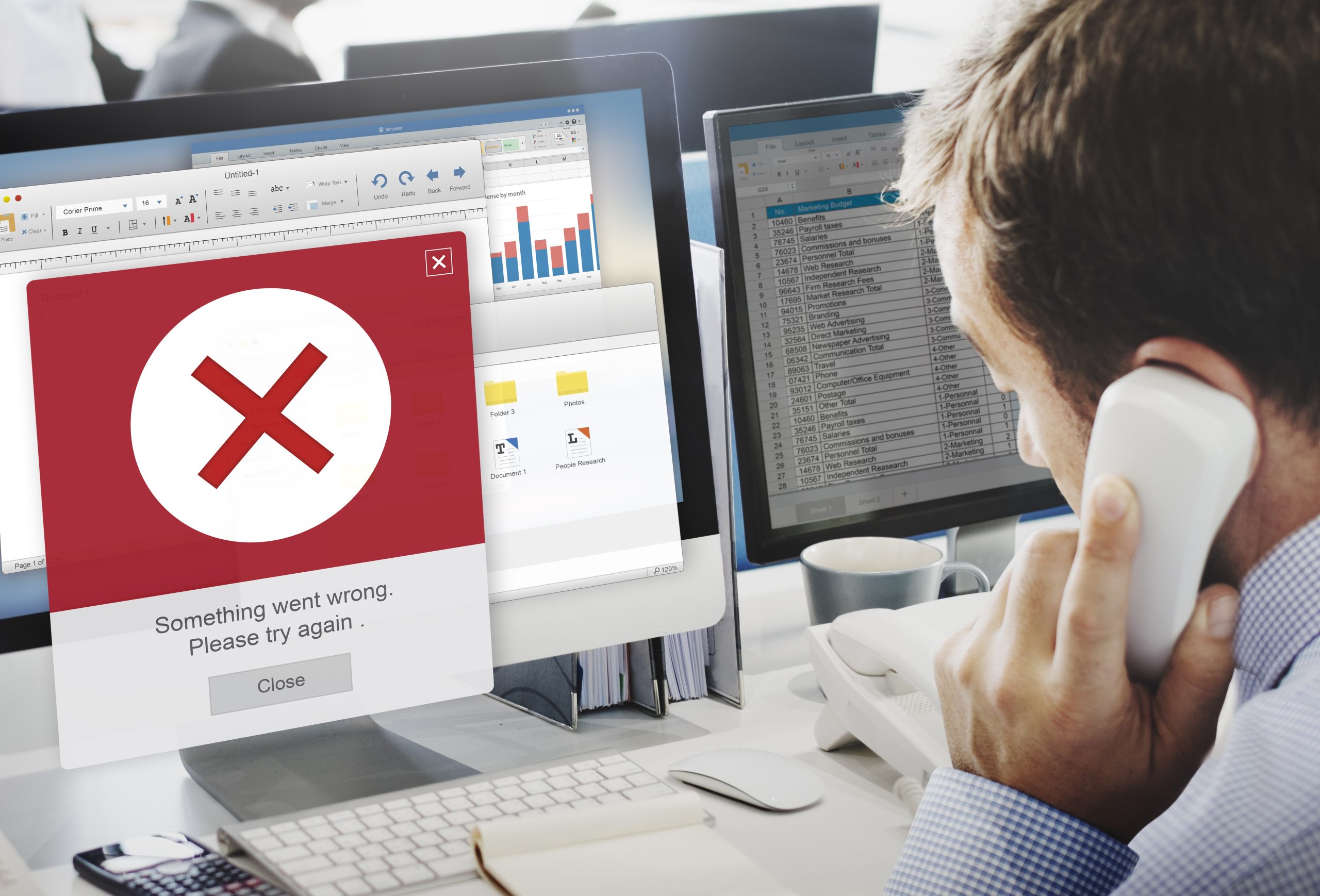
Updating WordPress is important for security and performance. But sometimes, an update does not go as planned. Your website may show a white screen, error message, or stop loading completely. This can be stressful, especially if you run a business website in Dubai or anywhere in the UAE.
The good news is that you can restore a WordPress website after an update failure by following the right steps. This guide explains everything in a simple and user-friendly way.
What Is a WordPress Update Failure?
A WordPress update failure happens when:
- A theme update breaks your site
- A plugin update causes errors
- A core WordPress update does not complete
- Your hosting server runs out of memory or time
Common signs include:
- White Screen of Death
- “There has been a critical error on your website”
- Site stuck in maintenance mode
- Admin panel not opening
Why WordPress Updates Sometimes Fail
Before fixing the issue, it helps to understand the reasons.
Common Causes
- Plugin or theme conflicts
- Outdated PHP version on the server
- Low memory limit
- Interrupted internet connection during update
- Incompatible theme or plugin
Many websites in the UAE face this issue when trying to upgrade WordPress website without checking compatibility first.
Step 1: Put Your Website in Maintenance Mode
If your site is partially working:
- Enable maintenance mode
- This prevents visitors from seeing broken pages
You can:
- Use a maintenance plugin
- Or rename the .maintenance file via File Manager
This keeps your brand image safe while you work on WordPress website repair.
Step 2: Check Error Messages Carefully
Error messages give useful clues.
Where to Check Errors
- On the website screen
- In WordPress debug mode
- In your hosting error logs
Enable debug mode by adding this line in wp-config.php:
- define(‘WP_DEBUG’, true);
This helps identify what caused the update failure.
Step 3: Disable Plugins to Fix Conflicts
Plugin conflicts are a major reason for update failures.
How to Disable Plugins
- Go to File Manager or FTP
- Open wp-content folder
- Rename the plugins folder
If the site starts working:
- Rename the folder back
- Activate plugins one by one
This step is very effective when trying to restore a WordPress website after a failed update.
Step 4: Switch to a Default Theme
Sometimes the issue is with your theme.
Easy Fix
- Go to wp-content/themes
- Rename your active theme folder
WordPress will automatically switch to a default theme.
If the site loads:
- Your theme needs fixing or updating
This is a common WordPress website repair method used by developers in Dubai and UAE.
Step 5: Re-upload Core WordPress Files
If the core update failed, some files may be missing.
How to Fix
- Download a fresh WordPress version
- Extract the files
- Upload only these folders:
- wp-admin
- wp-includes
Do not upload wp-content.
This safely helps you upgrade WordPress website without losing content.
Step 6: Restore from Backup (If Available)
Backups are the fastest way to recover.
Restore Using
- Hosting backup tool
- Backup plugin
- Manual backup files
After restoring:
- Check site functionality
- Update plugins and themes carefully
Many business websites in UAE rely on regular backups to quickly restore a WordPress website.
Step 7: Fix Database Issues
Sometimes updates affect the database.
Simple Database Fix
- Login to hosting panel
- Open phpMyAdmin
- Select your database
- Click “Repair Database”
You can also add this line temporarily:
- define(‘WP_ALLOW_REPAIR’, true);
This is an important step in WordPress website repair.
Step 8: Increase Memory Limit
Low memory can break updates.
Increase Memory
Add this to wp-config.php:
- define(‘WP_MEMORY_LIMIT’, ‘256M’);
This helps when you upgrade WordPress website with large plugins or themes.
Step 9: Remove Maintenance Mode Manually
If your site is stuck in maintenance mode:
Fix It
- Go to root folder
- Delete .maintenance file
This instantly brings your site back online.
How to Upgrade Your WordPress Website Without Breaking It
To avoid update failures in the future:
Best Practices
- Always take a full backup
- Update plugins one by one
- Use a staging site
- Check plugin compatibility
- Avoid updating during high traffic hours
Following How to Upgrade Your WordPress Website Without Breaking It saves time and prevents stress.
How to Maintain WordPress Website Speed and Security
After restoring your site, focus on long-term health.
Tips
- Keep WordPress updated
- Use trusted plugins only
- Install a security plugin
- Optimize images and cache
- Monitor site speed regularly
Learning How to Maintain WordPress Website Speed and Security is important for websites targeting users in Dubai and across the UAE.
When to Get Professional Help
If nothing works:
- Site is completely down
- You see repeated errors
- Data is missing
It is better to hire a WordPress expert for WordPress website repair. Professionals can safely restore a WordPress website without data loss.
Final Thoughts
A WordPress update failure can feel scary, but it is fixable. By following these steps, you can safely restore a WordPress website, fix errors, and upgrade WordPress website the right way.
Whether you manage a small blog or a business website in Dubai or UAE, regular maintenance and smart updates keep your site running smoothly.